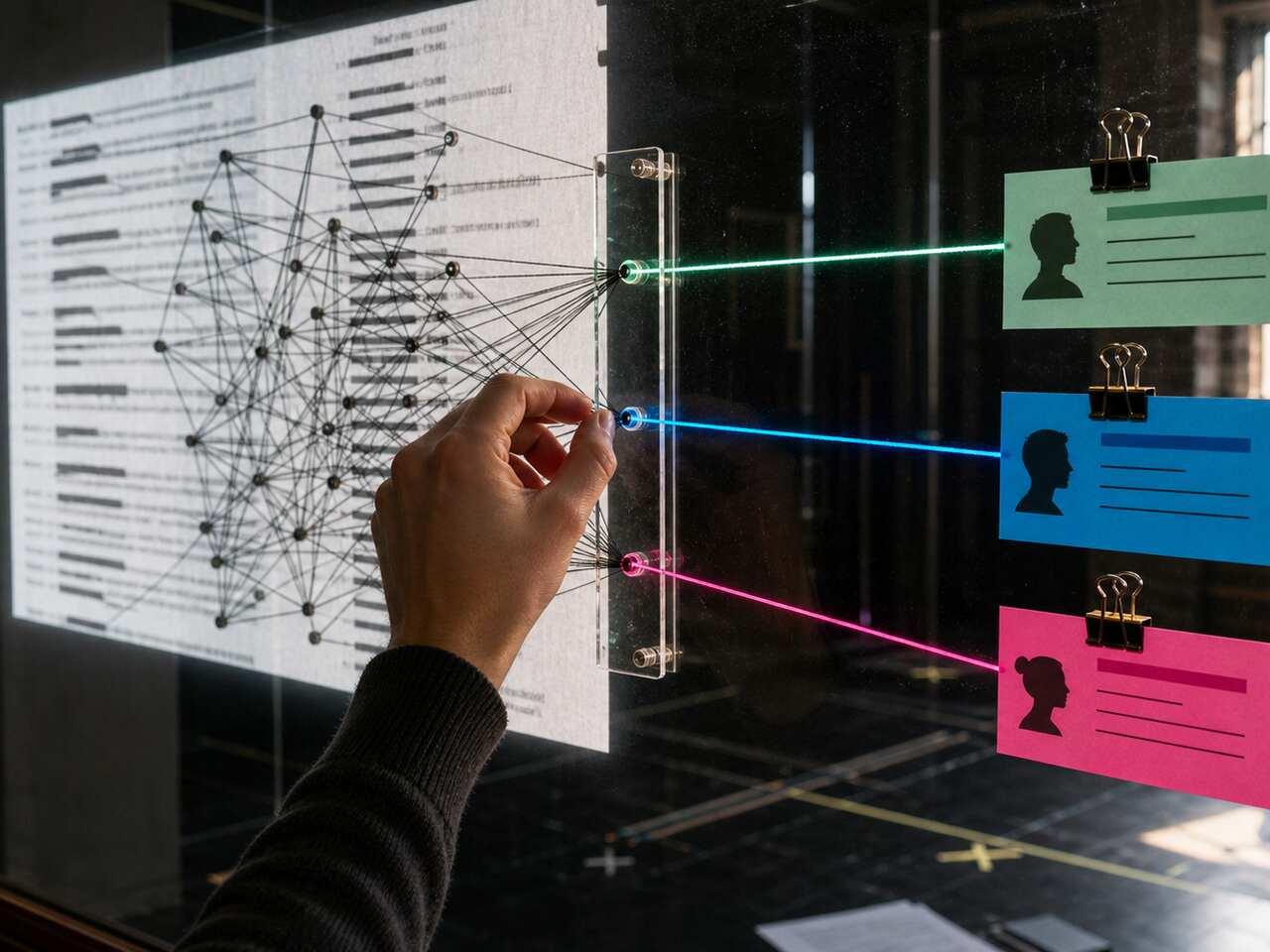
To convert a script PDF to text you can actually use in rehearsal, the first step is knowing what kind of PDF you have — embedded text or scanned image. Each type needs a different approach, and skipping that check is why standard converters leave you with a mess: character names merged with dialogue, scene headings missing, stage directions inline with spoken lines. This guide gives you the full workflow, from identifying your file type through verifying the output before you start drilling.
Why Standard PDF Converters Break Script Formatting
Most PDF-to-text tools extract raw text without understanding document structure. For a script, that's a serious problem.
Scripts use consistent visual spacing — character names centered, dialogue indented, stage directions in parentheses or italics — to separate what actors say from what they do and who says it. When a converter processes that as a flat text block, everything collapses into undifferentiated prose.
Here's what typically breaks:
- Character names merge with the first line of dialogue. "MARCO: I told you not to come here" becomes a single string instead of a labeled exchange.
- Scene headings disappear or merge with adjacent lines. Act and scene markers — the navigation structure of the script — get treated as ordinary text.
- Stage directions mix with dialogue. "(Moves to the window)" ends up inline with the lines before and after it.
- Page numbers and headers scatter through the text. Every header and footer from the original PDF becomes noise inside your extracted content.
The result is a wall of text that takes hours to clean up manually — and by the time you've done it, you've already lost time you needed for actual rehearsal.
For scanned PDFs, the problem compounds. Scanned scripts aren't PDFs with embedded text — they're images. No standard extraction tool reads images directly. You need OCR (Optical Character Recognition) to convert the image to text first, and then a script parser on top of that to recover the structure. Most general-purpose tools handle neither step reliably.
A Workflow That Works, Step by Step
The goal isn't just readable text. It's a structure you can use in rehearsal: scenes you can jump to, lines you can isolate by character, a script you can work with without constantly scrolling through the whole thing.
Step 1: Identify your file type.
Open the PDF and try to select text with your cursor. If you can highlight it, the PDF contains embedded text. If you can't — or if the selection jumps around the page — it's a scanned image. This single check determines the rest of your workflow.
Step 2: For embedded PDFs — use a script-aware parser.
Generic PDF converters will break formatting as described above. You need a tool that understands script structure, not just raw character strings. HitCue's AI parsing takes your PDF and rebuilds it as a navigable structure of acts, scenes, and dialogue — separated and labeled — so you can jump straight to scene three without scrolling through the entire document.
Step 3: For scanned PDFs — run OCR first, then parse.
A scanned PDF needs OCR before anything else. Options include Adobe Acrobat's free tier, Google Drive (upload as image, open with Google Docs), or dedicated OCR tools. The output will be rough — expect errors in character names and occasional merged lines. Before running the result through a script parser, scan for the most disruptive errors: character names OCR misread, stage directions stuck to dialogue, corrupted punctuation in mid-speech. Fix those, then parse.
Step 4: Verify the structure before you start working.
After conversion, don't assume the output is correct. Check:
- Are all character names consistent? OCR often creates variants — "ANNA", "Anna", "AMMA" — all treated as different speakers.
- Are scene breaks where they should be?
- Is dialogue correctly attributed to each character?
- Are stage directions separated from spoken lines?
This verification step takes 10–15 minutes and prevents hours of confusion during rehearsal drills.
If you're uploading a PDF to HitCue, Automatic AI parsing builds a navigable structure from your file — acts, scenes, and dialogue separated and labeled. If the parser misreads a character name, fix it directly with Character resolution without re-uploading the whole file.
More workflows for digital script study are collected in the AI for Script Work & Rehearsal hub.
What to Fix Before You Start Drilling
Even after a clean parse, a few things are worth checking before rehearsal work begins.
Character names. Run through the full character list and confirm each name is correct. A single OCR error — "CLAR A" instead of "CLARA" — will split that character's lines into two separate entities, making your line count and Character focus view unreliable.
Missing scenes. Browse through act by act and confirm the scene count matches the original. If a scene heading was dropped in conversion, it won't exist in your navigation — and you'll spend time hunting for it during rehearsal.
Dialogue accuracy. Spot-check four or five exchanges by comparing the converted text to the original PDF. Catching a misread line before you've memorized it wrong is far easier than correcting it after.
Stage direction placement. Stage directions should sit separately from spoken lines. If they've merged with dialogue in the conversion, correct them before your Character focus view becomes unreliable — especially if your role has a lot of action cues embedded in the text.
Script version. Confirm this is the correct version of the script. If rewrites have come in since you received the original PDF, this is the moment to load the updated file. Rebuilding your structure from a clean version now is less painful than discovering mid-rehearsal that you've been working from the wrong draft.
Once these checks pass, your script is ready for the actual rehearsal work: character assignment, scene navigation, and line drills.
Do it in HitCue
- Automatic AI parsing: converts your PDF into a structured script with acts, scenes, and dialogue separated and labeled.
- Scene navigation: lets you check whether act breaks, scene headings, and dialogue blocks landed in the right place before you trust the converted file.
- Character assignment: connects your role to the cleaned script so conversion turns into rehearsal material, not just copied text in a new format.
Upload your PDF and get a navigable script in minutes — then go straight to your lines. → Download HitCue