To extract dialogue from a PDF script, you pull your character's lines and the cue before each one into a single focused list, then tag it by scene. Do that and every practice session works from your part, not a 120-page document. For a clean, digitally typed PDF you can do this by hand in under an hour. For a scanned or multi-column file it's harder — and that's exactly the point where the choice between manual cleanup and automation starts to matter. Here's the full method, dirty cases included.
When Extracting Dialogue Actually Helps Actors
Extracting your dialogue by character isn't always worth the time. It pays off in specific situations:
- You're drilling alone. Pulling your cues and responses into one list turns a read-through into targeted practice — you see the line before yours next to your response and drill them as a unit, the way they work on stage.
- The script is long, or you're in a lot of it. If your part is scattered across 40 entrances, a filtered list saves you from scanning the same pages every session.
- You're covering more than one role. An understudy or a doubling actor needs each part isolated, not blended into the full text.
- You want to see your character's patterns. Compressed into a list, your lines reveal repeated phrases and logic gaps that disappear when the text is spread across pages.
It's not worth it if you have three lines in a one-act, or if you already have a clean digital script you can filter in place. Extraction is a tool for volume and focus — not a ritual to perform on every PDF.
The Manual Method for a Clean, Text-Based PDF
If your PDF was digitally typed, not scanned, you can copy the text directly. Five steps.
1. Copy the text into a plain editor. Open the PDF in any reader, select all (Cmd+A / Ctrl+A), copy, and paste into a plain-text editor or a Google Doc. Skip Microsoft Word on the first pass — it reflows text and scrambles dialogue order, especially with two columns. If the paste looks garbled, try Google Docs, which handles plain text more predictably.
2. Use Find to jump to each speech. Open Find (Cmd+F / Ctrl+F) and search your character's name with whatever punctuation the script uses — ANNA:, ANNA., or ANNA alone if the first two return nothing. Each match lands on one of your speeches. The line just above it is your cue.
3. Build a cue-and-response table. This is the deliverable — the thing you actually drill from. Two columns, one row per speech:
| Cue | Your line |
|---|---|
| "It doesn't matter anymore." | "It does to me. It always has." |
| "You had one chance and you missed it." | "Then give me another one." |
| "Tell me what you want from this." | "I want it to mean something. That's all I've ever wanted." |
Expect 30 to 60 minutes for a full-length script. Slow to build, but once it exists every session is practice instead of reading.
4. Tag each row by scene. Add an act-and-scene column so you can prioritize the scenes you're shakiest on before a rehearsal, instead of running everything from the top.
| Scene | Cue | Your line |
|---|---|---|
| Act 1, Sc. 2 | "It doesn't matter anymore." | "It does to me. It always has." |
| Act 2, Sc. 1 | "You had one chance and you missed it." | "Then give me another one." |
5. Clean up the extraction. Before you trust the list, read it against the script once. Check three things: every one of your speeches made it in, the cue above each line is the real preceding line and not a stage direction, and no long speech got cut off at a page break. Ten minutes of cleanup here saves you from drilling a line against the wrong cue for two weeks.
Dirty PDFs: Failure Cases and What to Do
The five-step method assumes a clean, typed PDF. Three common cases break it. Here's how to spot each one and what to do about it.
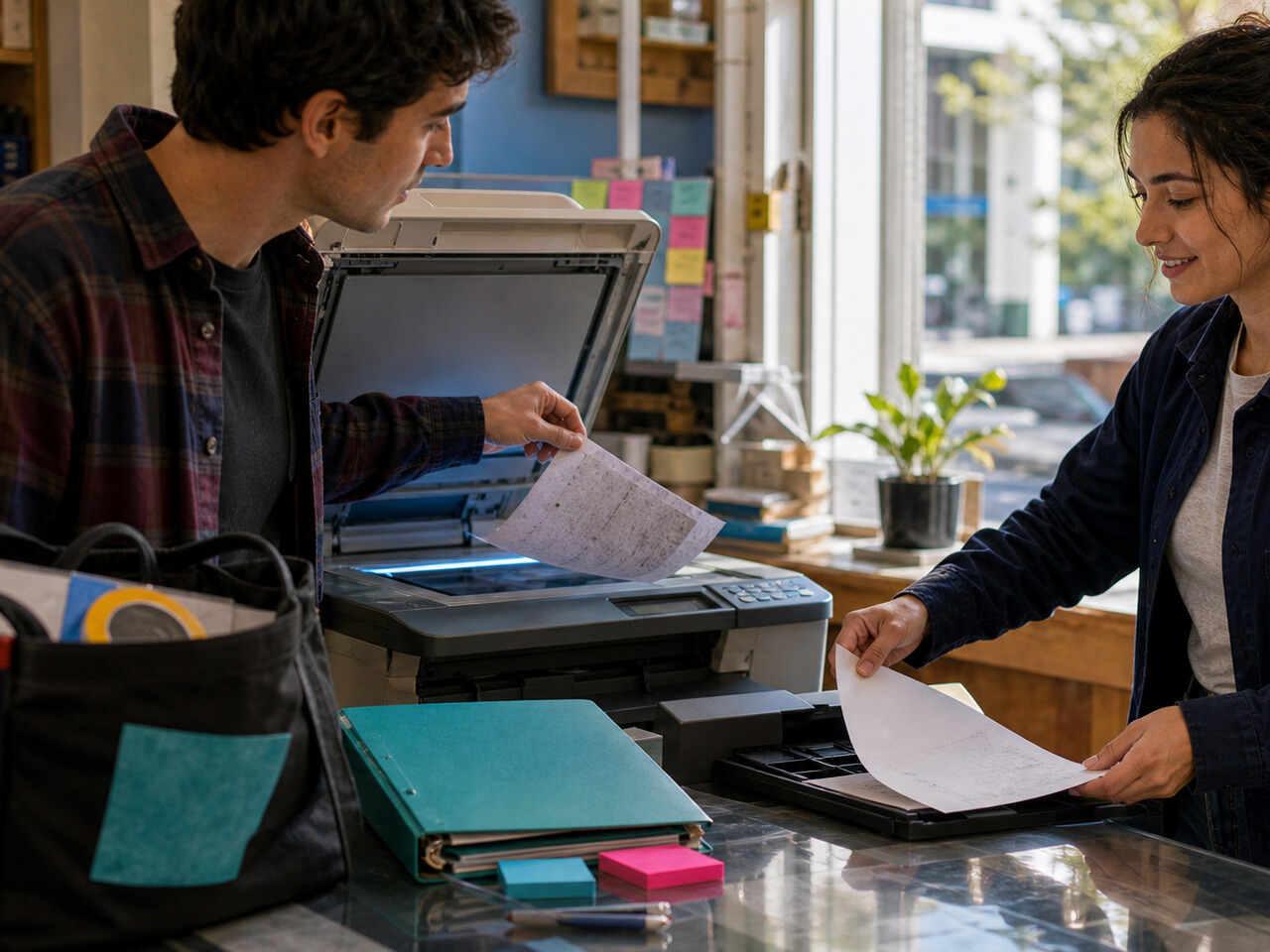
Scanned PDF — you can't select the text. Studio sides, older plays, and photocopied read-through scripts are often images, not text: select-all copies nothing, or copies gibberish. What to do: run it through OCR first to get selectable text, then start the manual method — but budget extra cleanup, because OCR on scripts mangles character names and merges dialogue with stage directions. If most of your files arrive this way, that's the single strongest reason to automate. See OCR a script PDF for the conversion step.
Multi-column layout. Published stage scripts often split the page: stage directions in one column, dialogue in another. Select-all interleaves the two, so your export alternates direction fragments with dialogue fragments in an order that doesn't follow the scene. What to do: don't copy the whole page. Work scene by scene, copying only the dialogue column — or just retype your speeches straight from the page. With a bad column layout, retyping is usually faster than untangling the paste.
Inconsistent character labels. If the script calls your character "DAN" in act one, "DANIEL" in act two, and "D." in stage directions, a single Find pass misses speeches every time the label changes. What to do: search each variant separately and reconcile the results, or standardize the labels in your copy first — find-and-replace every variant to one name before you extract. The failure mode to avoid: assuming one Find pass caught everything and walking into rehearsal missing a third of your lines.
When Automation Is Worth It
Automation isn't a shortcut you always take — it's a trade you make when the manual method costs more than it saves. It's part of a broader digital script workflow, and it earns its place in specific conditions. Reach for a script-aware parser when:
- The file is scanned or multi-column, so hand-extraction is slow and error-prone.
- The character labels are inconsistent and you want them reconciled to one part in a single step, not chased with repeated Find passes.
- You do this often — a new script every few weeks — and the setup time compounds.
- You want your lines, cues, and scene structure kept in sync as you correct the text, rather than rebuilding a table by hand each time.
Stick with the manual method when the PDF is clean, the part is small, or you only need this once. The question isn't "is automation better." It's "is the file dirty enough, or the volume high enough, that hand-extraction stops being the fast path." A parser earns its keep exactly where the five-step method breaks: scanned text, scrambled columns, and split labels.
Do it in HitCue
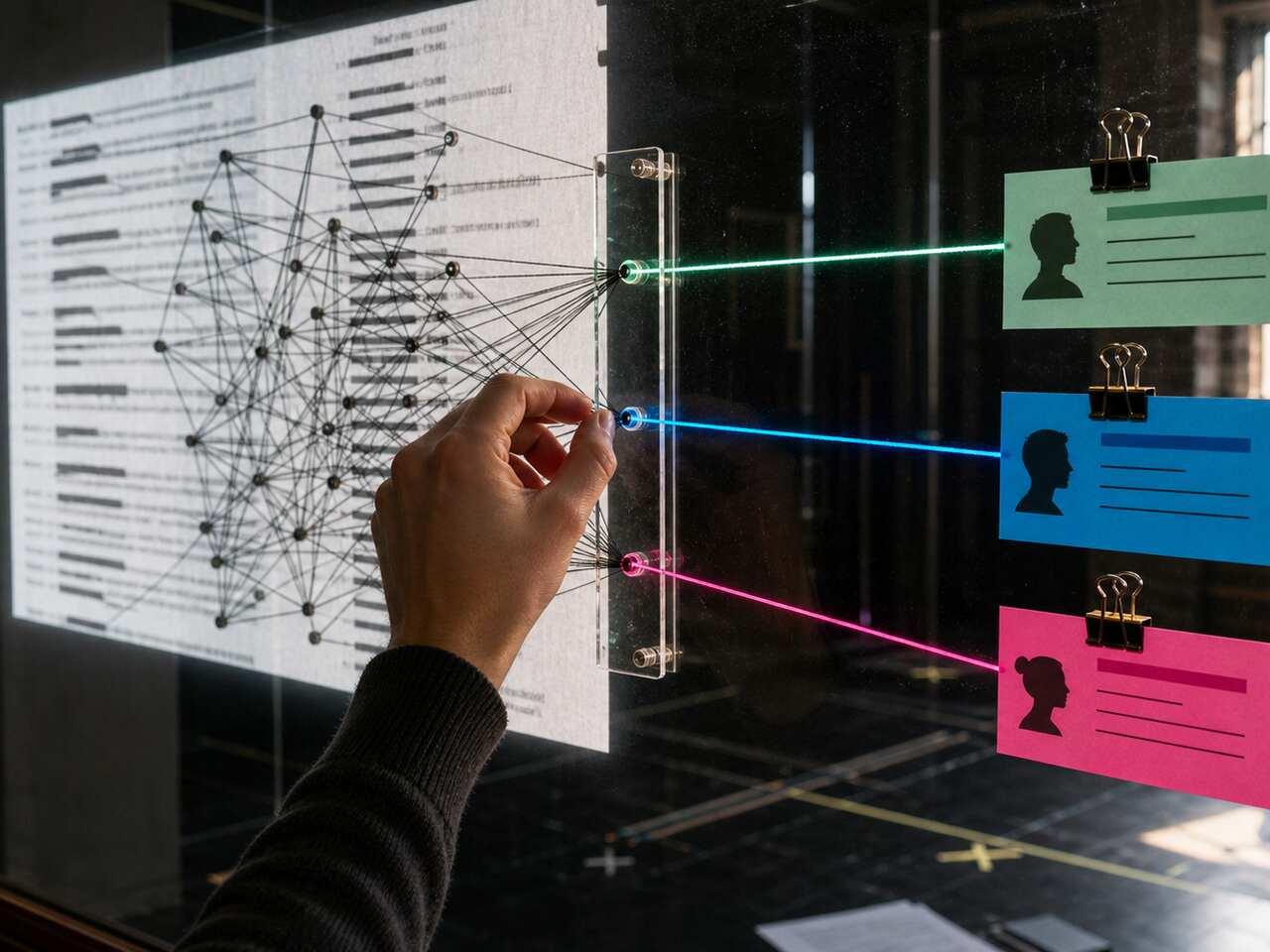
- Automatic AI parsing: structures a scanned, multi-column, or messy PDF into acts, scenes, and character dialogue — the files where hand-extraction stops being the fast path.
- Character focus view: gives you only your character's lines and cues — the cue-and-response list you'd otherwise spend an hour building by hand.
- Character assignment: assign yourself one or more parts in the same script, so a doubling actor or understudy keeps each role's lines separate instead of blended.
Upload your script, switch to Character focus view, and practice from your character's cue-and-response list — without scrolling the full cast's dialogue. → Download HitCue