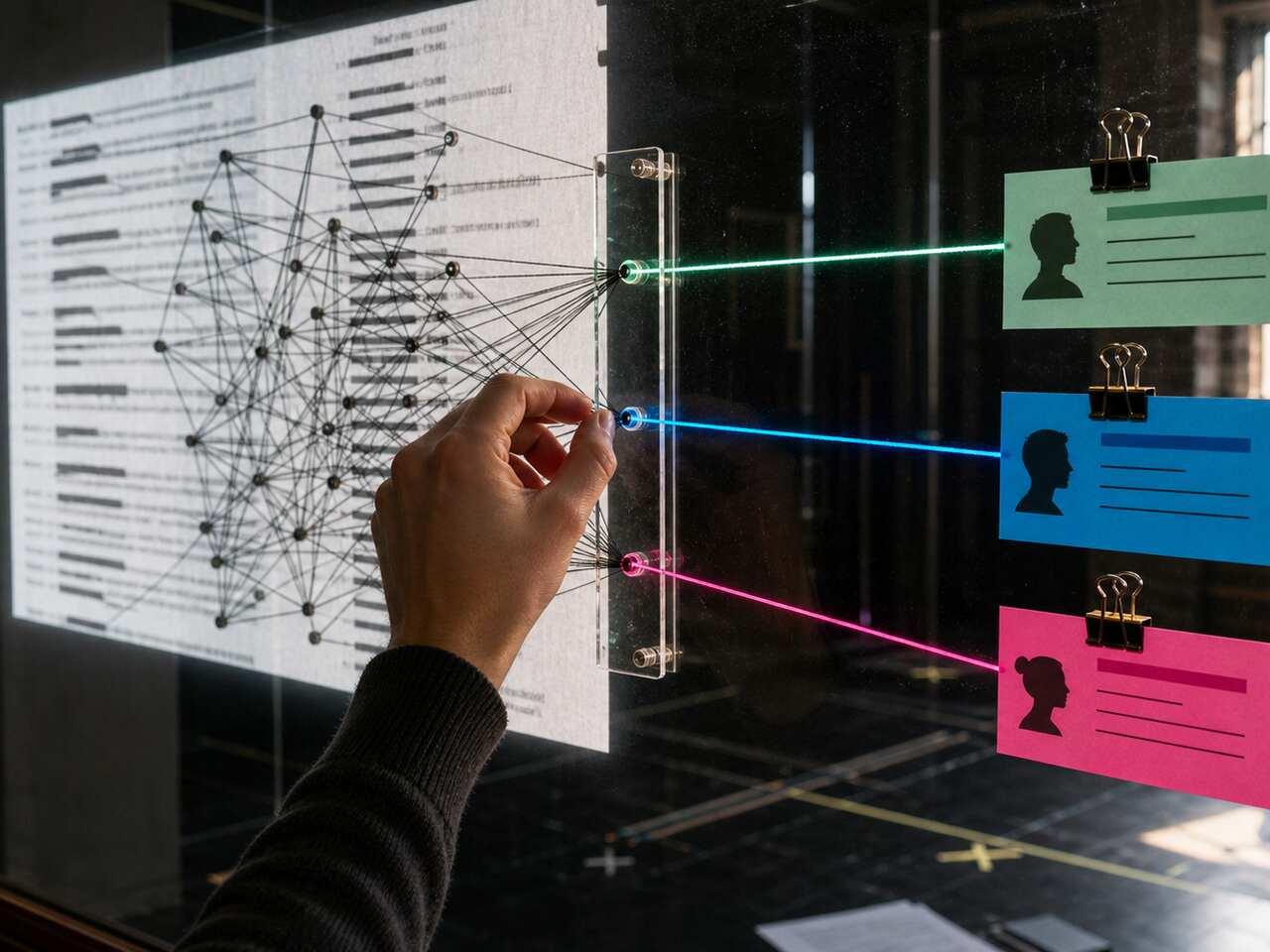
If you can't select text in your script PDF, you're probably looking at scanned page images, not a real text layer. OCR turns those scanned pages into readable, copyable text. But running OCR alone won't give you a rehearsal-ready script. The output usually has mangled character names, missing scene headings, and dialogue merged with stage directions. What you do before OCR — and the cleanup pass after — decides whether you end up with a usable script or 90 pages of garbled text. Here's how to check whether your PDF needs OCR, prep the scan, verify the output, and clean character names before rehearsal study.
How to Tell If Your Script PDF Needs OCR
The fastest test: try to select a line of text on any page. If your cursor or finger drags a box across the page instead of highlighting individual words, the PDF is a scan. Three other signs:
- The file size is much larger than expected. Scanned PDFs are often much heavier than text-based PDFs because every page is stored as an image.
- Text looks crooked or has speckles in the background. Scanned photocopies show scanner artifacts, page edges, and slight tilt. Text-based PDFs don't.
- A keyword search returns nothing. Search for a character's name. If the PDF finds zero matches even though the name is clearly on multiple pages, there is no text layer to search.
If any of these are true, OCR is the fastest path from your PDF to text you can search, copy, and restructure for rehearsal.
What to Do Before You Run OCR
Most OCR mistakes happen because the input was bad, not because the tool was bad. A few minutes of prep prevents an hour of cleanup.
- Strip out non-script pages. Remove covers, programme inserts, blank pages, and casting pages. OCR processes every page, and any page that isn't script slows the job and adds noise to the output.
- Straighten skewed pages. Most OCR tools have a "deskew" or "auto-rotate" function. A tilted page can lower OCR accuracy — especially on character names in all caps.
- Increase contrast on faint scans. If you received a photocopy of a photocopy, run a contrast filter first. Faded text trips OCR more than any other factor.
- Check resolution. Use the clearest scan you can get. Low-resolution pages produce broken words, missing punctuation, and character names that need more cleanup.
- Confirm it's the current draft. If rewrites have come in since you received the file, OCR the latest version — not the copy sitting in your inbox. Cleaning up a stale draft is the most avoidable wasted hour in the process.
If your director sent the script via WhatsApp or as phone photos, treat it like a scan and run OCR — even if the file looks like a normal PDF when you open it.
A Step-by-Step OCR Workflow for Actors
This works the same whether you use a desktop PDF app, a built-in text-recognition feature, an online tool, or a dedicated OCR app. The order is what matters.
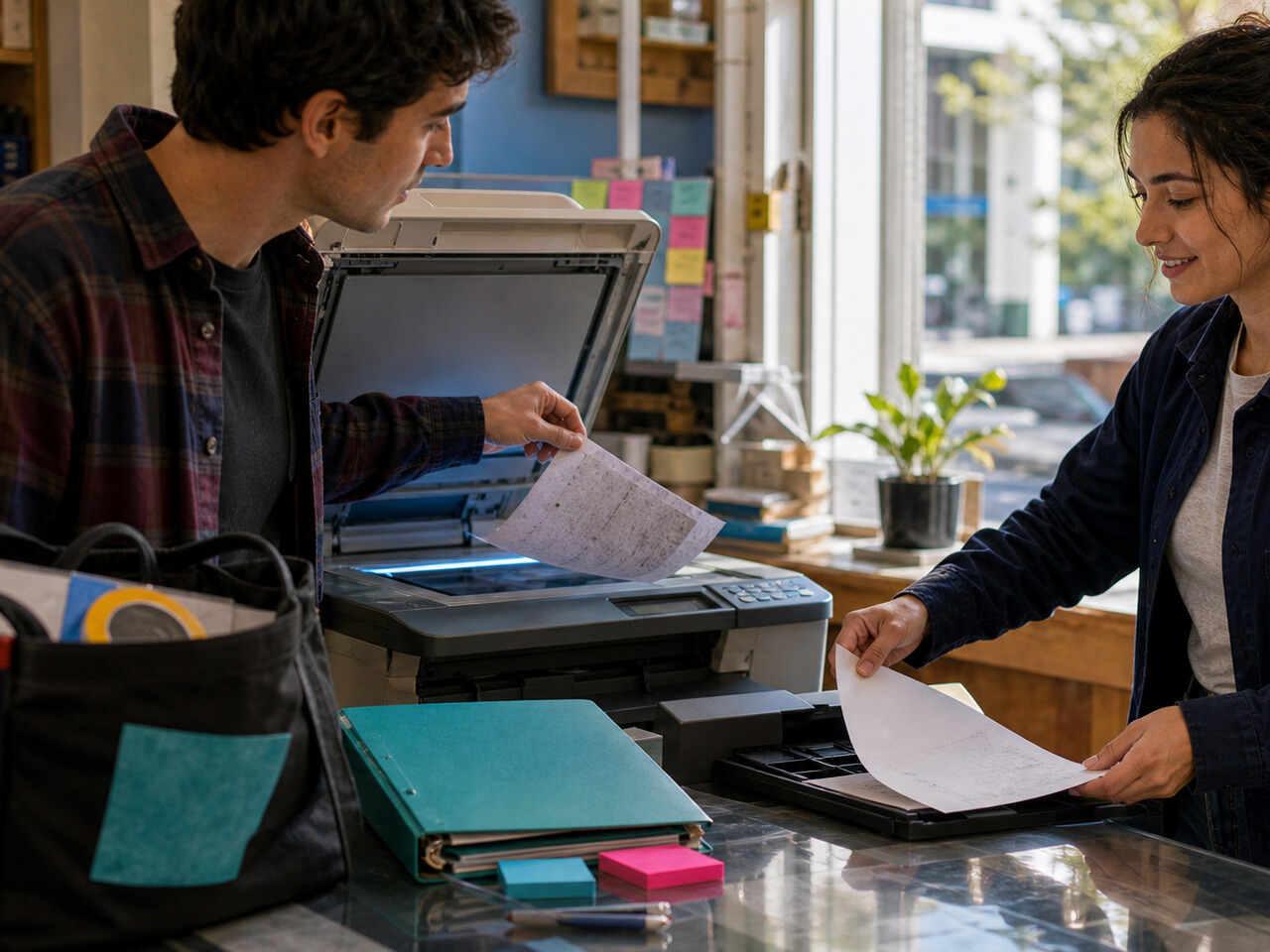
- Save a working copy of the original PDF. Never OCR your only copy. If something goes wrong with the conversion, you want the source untouched.
- Run OCR on the working copy. Most tools let you choose between "searchable PDF" (text layer added to the existing images) and "text export" (plain text only). For rehearsal use, the searchable PDF is more useful — it keeps the layout while making text selectable.
- Verify the output on three test pages. Open the OCR'd PDF, try to select a line of dialogue, and paste it into a notes app. If the text comes through clean, the OCR worked. If you see boxes, missing letters, or random characters, the input quality needs to improve before continuing.
- Export plain text or upload the OCR'd PDF to a parsing tool. Once you trust the OCR output, you can either keep it as a searchable PDF for reading or pull the text out for restructuring into acts, scenes, and characters.
When the text is clean, the next step is turning it into a rehearsal-ready structure — acts, scenes, character lines, cue points. A script-aware parser can take that clean OCR output and break it into navigable acts and scenes; run a character-name pass afterward to fix any OCR slips that made it through before your first off-book pass.
This sits inside the broader digital script workflow for actors, which starts with file conversion and ends with character-level practice.
Cleanup Pass: Common OCR Slips to Fix First
Even good OCR makes the same handful of mistakes on theatre scripts. Catch them once, and the rest of the script becomes navigable.
| OCR slip | What it looks like | Quick fix |
|---|---|---|
| Character name mis-spelled | "JUL1A" instead of "JULIA", or "JU LIA" with a stray space | Find-replace by character; verify with a line count per name |
| Scene headings missing | "ACT II SCENE 3" merged into the previous dialogue paragraph | Add a line break before the heading; mark with a consistent format |
| Stage directions merged with dialogue | "[She exits.] Tomorrow then." on one line | Split into two lines; brackets keep the direction visible |
| Page numbers inside the text | A scene that ends with "— 47 —" mid-line | Search for digit patterns and remove; common in older typeset scripts |
| Em dashes converted to hyphens | "I just — wait" becomes "I just - wait" | Fix broken pauses manually instead of running a global find-replace |
Don't try to fix every error in one pass. Fix character names first — that's what every downstream tool will use to organise lines. Scene headings second. The rest can be cleaned as you encounter them in study.
If a long stretch of text comes out unreadable, that section probably had worse scan quality than the rest. Rescan or rephotograph just those pages and re-run OCR on the patch — it's faster than fighting a bad input line by line.
Do it in HitCue
- Automatic AI parsing: Takes sufficiently cleaned OCR text and turns it into a navigable script with acts, scenes, and character lines.
- Character resolution: Catches the names OCR mangled (broken across lines, mis-spelled, duplicated) and lets you merge them into the right character without losing any dialogue.
- Line editing: Repair the OCR slips you spot while studying — merged stage directions, missing words, broken dashes — inline, without re-uploading the whole script.
Upload your OCR'd script to HitCue, let Automatic AI parsing do the structural work, then sweep up the remaining OCR slips with Character resolution and Line editing before your first off-book pass. → Download HitCue