A swing track template doesn't need to be comprehensive — it needs to be fast. When you get called at noon for a 7:30 curtain, you won't read a document. You'll scan it. The structure below is built around one question: what do you need to locate in under 20 minutes? This article gives you the format you can copy, a filled example across two roles, and the maintenance habit that keeps it accurate through production changes.
What a Swing Track Template Actually Needs
Most swing bibles fail under pressure because they were built for completeness, not speed. You filled in every staging note, every costume detail, every blocking nuance — and ended up with a 40-page document that's impossible to navigate when the SM calls at 3 p.m.
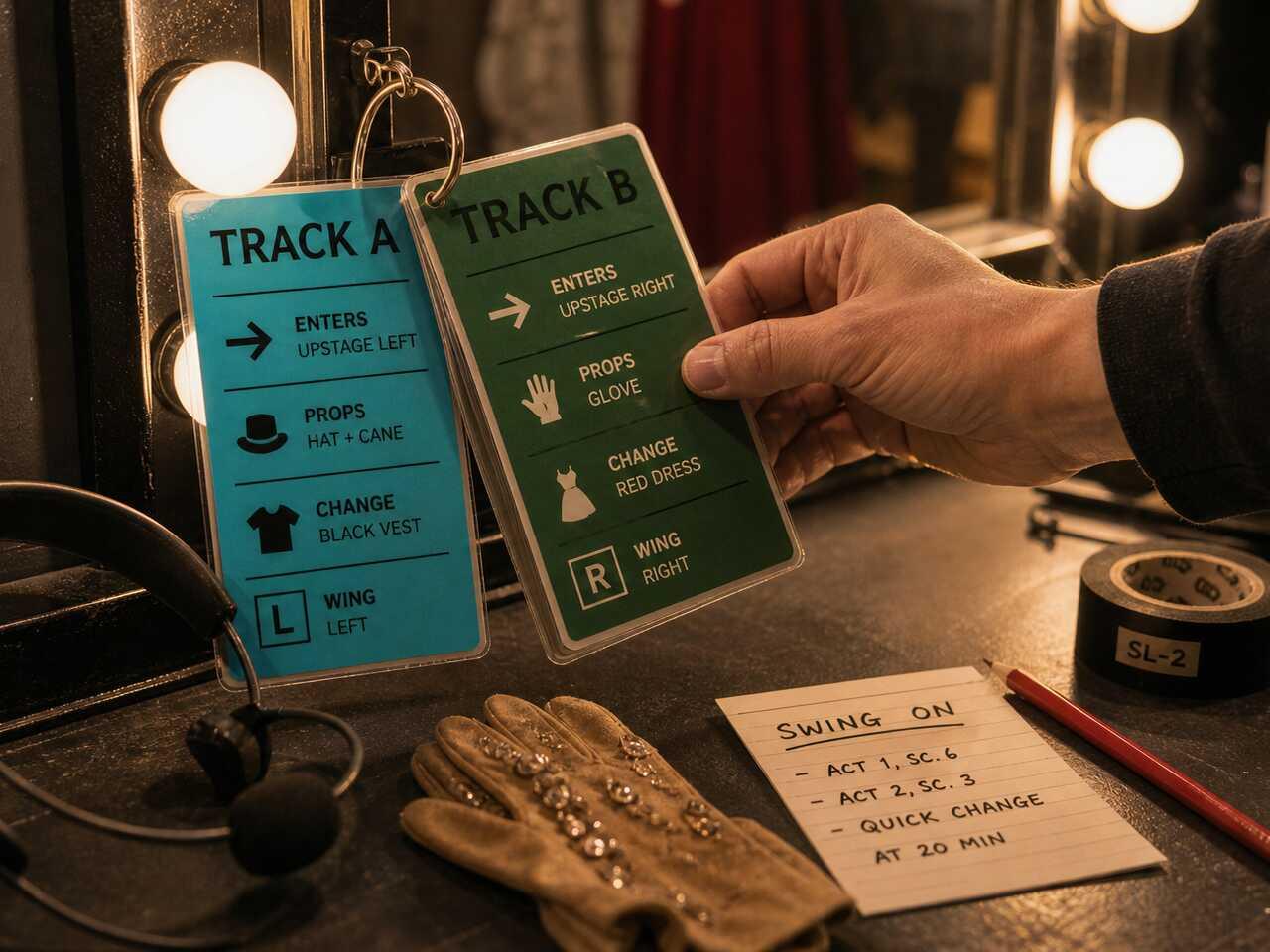
A functional swing track template contains exactly six things per track:
- Track name and date last updated — at the very top, always
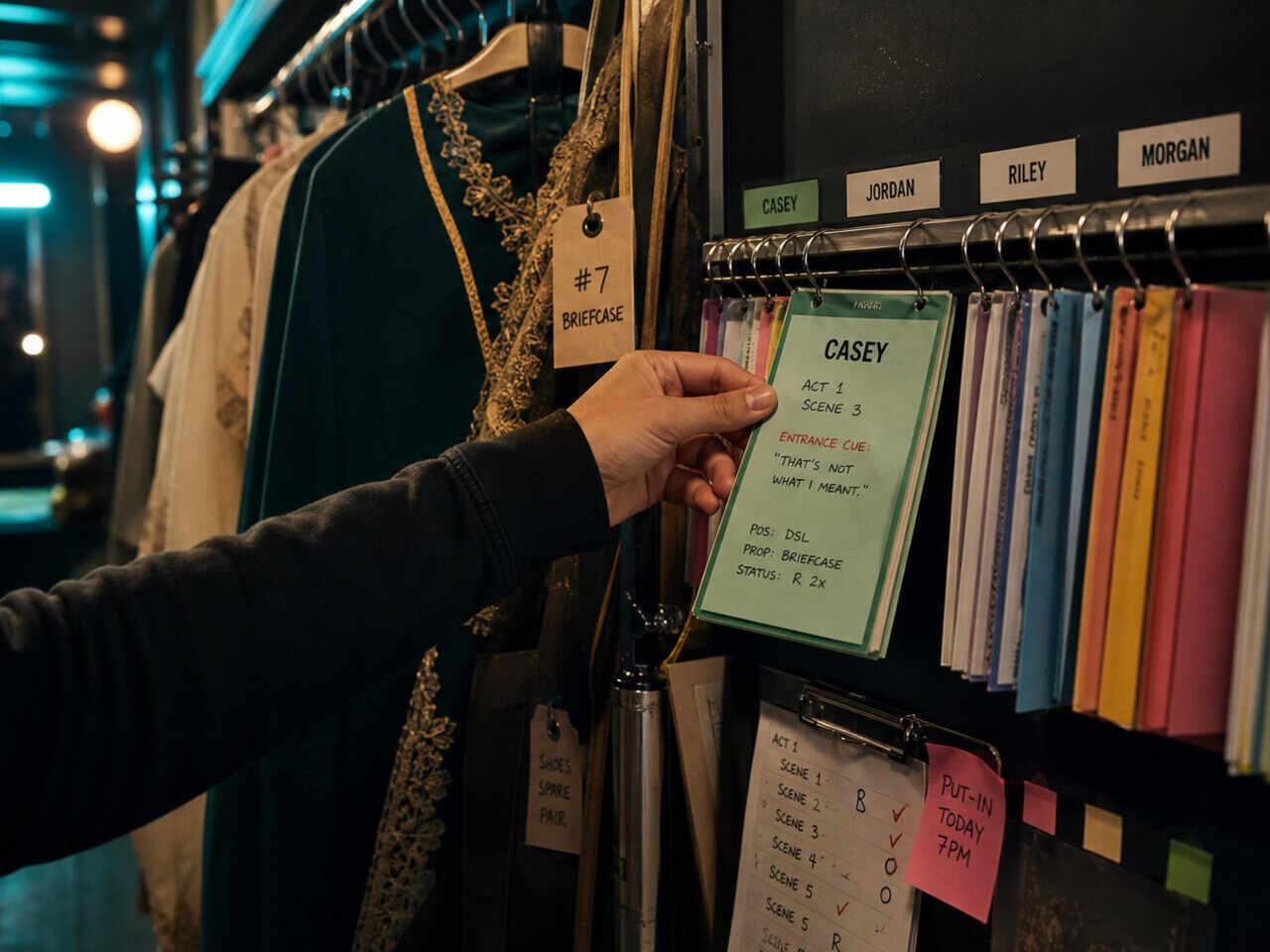
- Entrance cues — the exact line you enter on, the scene, and which wing
- Blocking anchors — 2–3 key positions per scene, not every cross
- Costume changes — scene, quick-change window, dresser note if there is one
- Props — item, pickup location, preset point
- Partner cues — any line or action from another performer that you react to directly
What it does not need:
- Every line of dialogue (that's what the script is for)
- Choreography counts beyond your key positions
- Director notes that are no longer in the production
The goal is a document you can skim in a dressing room with 45 minutes to go.
How to Structure It for a Fast Pre-Show Review
Organize your template by track, not by scene. If you cover three ensemble tracks, you want three separate sections — not a chronological scene list where you have to parse which notes apply to which role mid-adrenaline.
Copy and fill in this structure for each track you cover. For each track, use two blocks:
Track header (top of each section)
| Field | Your note |
|---|---|
| Track name | e.g., Cover 2 — Maria |
| Character | Maria, Ensemble Track B |
| Last updated | 2026-04-28 |
| Watch for | Scene 4 blocking changed after week 2 — confirm with SM |
Scene reference table (one row per scene you appear in)
| Scene | Entrance cue | Wing | Key positions | Costume | Props |
|---|---|---|---|---|---|
| Act 1, Sc. 1 | "Welcome home, everyone" | SR | Open DS center, move to UR group | Blue dress | None |
| Act 1, Sc. 3 | End of blackout | SL | Hold SL pocket, cross on applause | Same | Bouquet — pre-set table 2 |
| Act 2, Sc. 2 | Conductor pickup bar 16 | SR | Replace Cover 1 position at piano | Red jacket | Gloves — handed off by dresser |
This table format is scannable. During a quick pre-show review, you move scene by scene and confirm the essentials — without reading dense prose.
A Filled Example: One Track, Two Roles
Here's what a completed section looks like for a swing covering two roles in the same production:
Track: Cover 3 — Alex (Villager / Guard) Last updated: 2026-04-30 Watch for: Act 2, Sc. 5 — Guard entrance changed week 3. Confirm wing with SM before curtain.
| Scene | Entrance cue | Wing | Key position | Costume change | Props |
|---|---|---|---|---|---|
| Act 1, Sc. 2 | "The village square" — 3rd word | SL | Join USL group, step DS on music button | Villager | None |
| Act 1, Sc. 4 | End of Scene 3 transition | SR | Establish CS Guard mark | Quick-change to Guard | Spear — pre-set SL wing |
| Act 2, Sc. 5 | "Stand aside" — confirm SR with SM | SR | Cross to DSR, face onstage | Guard | None |
| Act 2, Sc. 8 | Final tableau, follow Alex principal | SL | Mirror Alex principal's position | Back to Villager | Prop basket — passed onstage |
Notice the flag in Scene 5: "confirm SR with SM." That's the note that prevents a wrong entrance. When staging changes and you update the table, don't silently overwrite the old note — add the date and a brief flag so you know something moved.
If you're building your first document from scratch, the swing bible overview covers the full scope of what a swing bible should include. The template format here is the structural layer you build the content into.
For a broader view of understudy and swing preparation resources, the Understudy & Swing hub collects the full cluster.
Keeping separate notes per covered role is the hardest part of swing work at scale. Give each track its own section and never let two tracks share a table — the failure that ends a swing's night is reading Cover 2's entrance while covering Cover 3, and a merged document is where that mistake lives. One track per section, one section you can open without scrolling past the others.
Keeping It Current
A swing track template is wrong from the moment you stop updating it. Production changes, restaging, and cast replacements make stale notes an active liability — you'll rely on a note that reflects how the show ran six weeks ago.
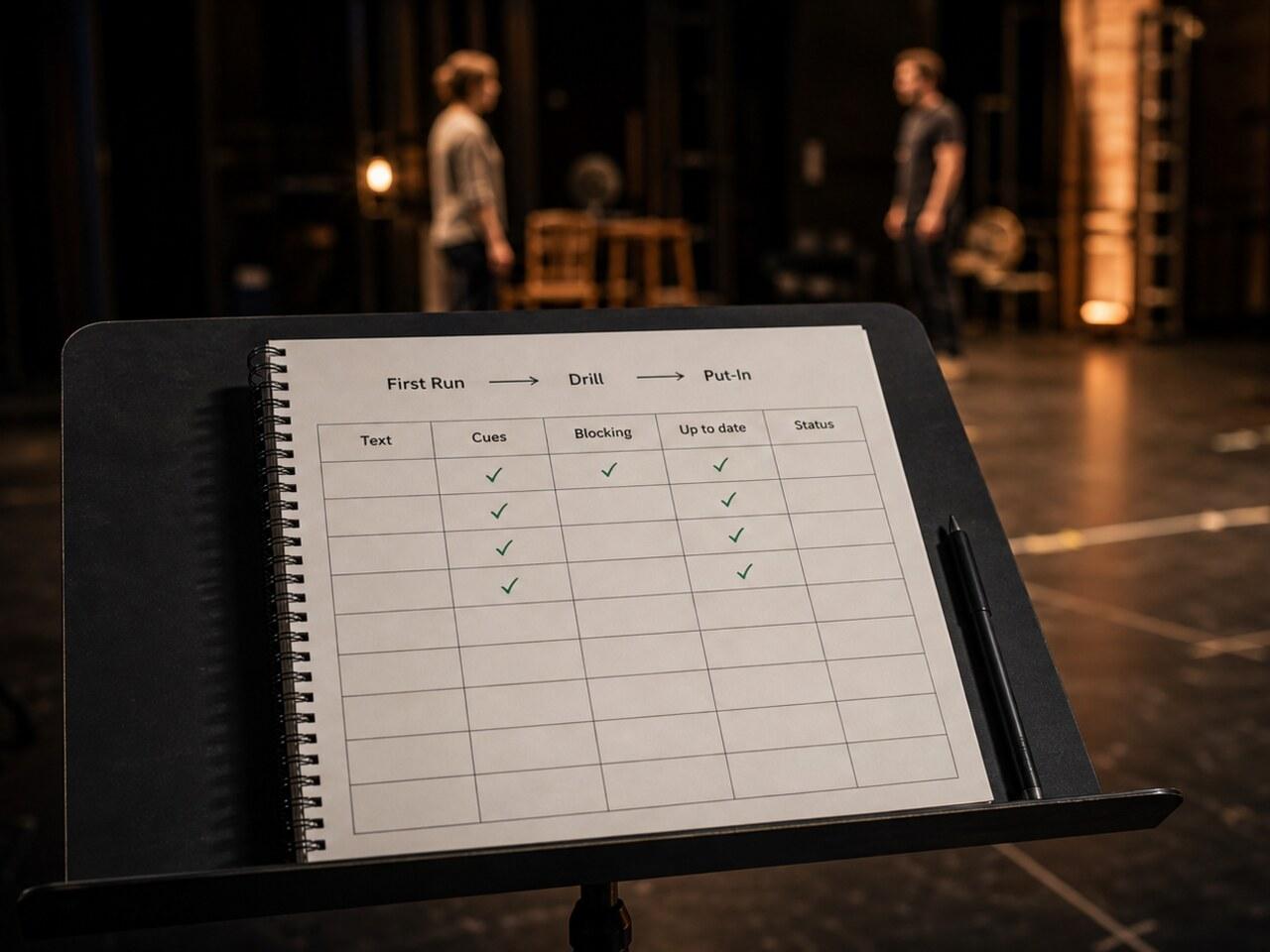
Build one habit: after every rehearsal where you observe a track, open your template and run this check before you close it:
- [ ] Did any entrance cue change?
- [ ] Did any key blocking position shift?
- [ ] Did any quick-change timing or dresser location change?
- [ ] Did any prop preset move?
- [ ] Did the SM announce any upcoming changes?
If anything changed, update the relevant table row and add the date. If you can't update immediately, add a flag at the top of the track section: "Changes in Act 2 from [date] — verify with SM." That flag is safer than a silently outdated note you might trust.
Do it in HitCue
- Character assignment: assign each track you cover as a separate character in the same script — keep notes, progress, and cue context per role without managing separate files.
- Character focus view: switch to any covered role's lines and entrance cues immediately — no scrolling through the full cast when you're reviewing before you go on.
- Character notes: keep entrance cues, blocking anchors, and prop presets attached to each covered role, so tonight's track has its own reference instead of a merged sheet you have to filter under pressure.
Assign all your tracks, then switch between them in one tap. → Download HitCue