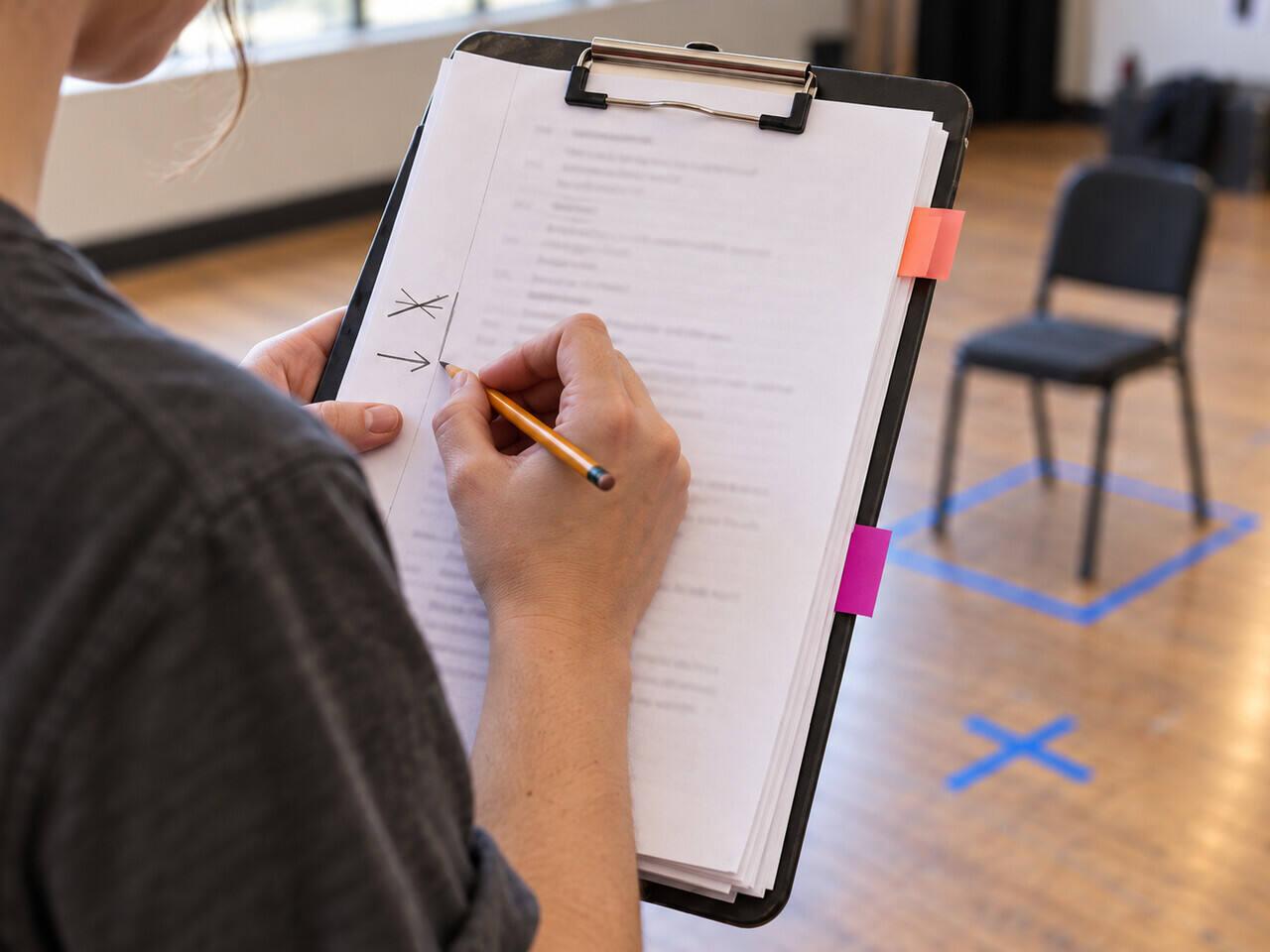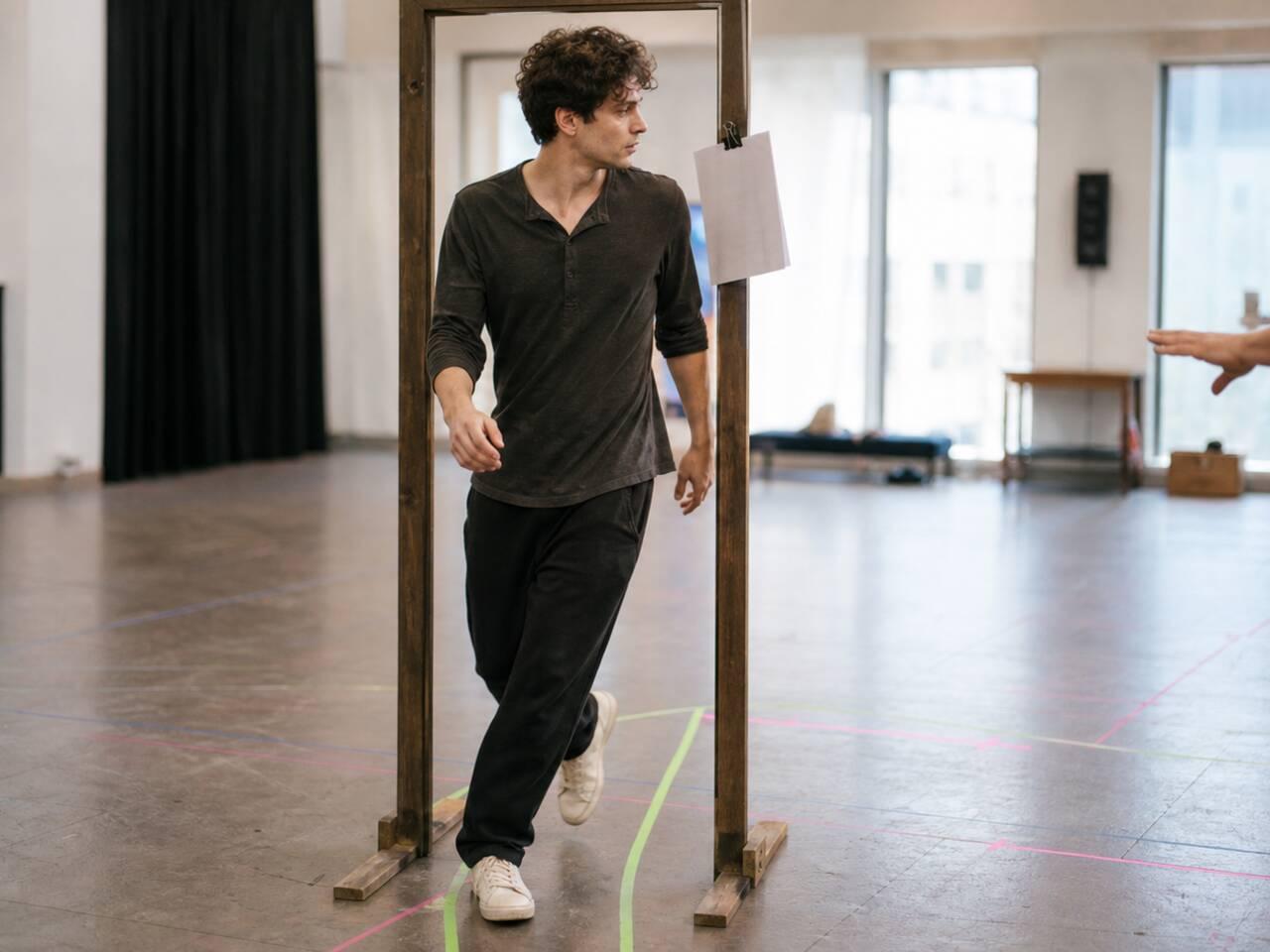
Digital script annotation breaks down for one reason: most note systems anchor marks to a page, and pages move every time the script gets revised. Cut three pages or swap a line and your highlights, sticky notes, and margin comments no longer point at the right moment in the text. The fix isn't a better app. It's a set of rules that keep notes attached to the scene and the character, not to a page number that's only accurate until the next revision.
Why Page-Anchored Notes Fall Apart on a Digital Script
Most PDF annotation tools place a note at an x-y coordinate on a specific page. That works fine until the script changes — and in rehearsal, it always changes.
Here's the dirty version: you get a revised PDF on day ten with three pages cut from act two. Your character's biggest scene shifted from page 34 to page 31. Every comment, highlight, and cue mark you placed over the last week is still sitting on the old page 34 — which is now a different scene entirely. You spend the next rehearsal re-finding marks instead of using them.
This is worse on a digital script than on paper, not better. A paper script with a cut just gets a page torn out and notes copied over by hand — slow, but the actor controls the migration. A PDF replaces the whole file. There's no migration step unless you build one into your system.
If your starting point is a scanned copy rather than a clean PDF, the problem starts even earlier: a scanned page is an image, not text, so no annotation tool can attach a note to a specific line until you convert it with OCR first. Annotation rules only work on a script that's actually structured into readable text.
Rule One: Anchor Notes to the Line and the Character, Not the Page
The rule that fixes the page problem: every digital note should reference what's being said and who's saying it, never where it sits on the current page.
In practice, that means tagging a note with the scene number and a short line fragment, not a page-and-coordinate pair. Take this original exchange:
MARA: You said you'd call before the hearing. JONAH: I did call. You didn't pick up. MARA: That's not the same thing.
A page-anchored note might read "p. 34, top margin: beat shift here." A line-anchored note reads "Scene 6, MARA's 'that's not the same thing' — beat shift, she stops explaining and starts accusing." The second version survives a repagination untouched. The first one is useless the moment the scene moves.
This rule costs a few extra seconds per note. It saves you from rebuilding your entire markup the next time the script changes — which, across a rehearsal process, happens more than once.
Rule Two: Keep Three Layers, and Never Let Them Mix
Annotation fails when one note tries to do two jobs — a blocking reminder written inside a line reading, or a character objective scribbled into a scene-level cue mark. Keep three layers separate and consistent across every revision:
| Layer | What lives here | Breaks if mixed with |
|---|---|---|
| Scene notes | Cue marks, beat shifts, blocking, director notes for that scene | Character objectives — they don't change scene to scene |
| Character notes | Objectives, arc decisions, psychological choices | Scene-specific blocking — it gets outdated every revision |
| Open questions | Anything still unresolved — text meaning, staging, intention | Settled choices — mixing the two hides what still needs an answer |
The full system for building these three layers — including the symbols and labels that go inside each one — is covered in the Script Annotation & Digital Note Systems hub. What matters for a digital workflow specifically is that each layer needs to survive a revision independently. A blocking change should only touch scene notes. A director clarifying your character's want should only touch character notes. If the layers are mixed in one note field, you can't update one without re-reading and re-sorting all of them.
Rule Three: Version Every Revision So Old Notes Don't Compete With New Ones
The most common digital annotation failure isn't losing notes — it's keeping two contradictory versions active at once. You marked a beat shift one way before the cut, then marked it differently after, and now both notes are visible with no indication which one is current.
A simple revision rule fixes this:
- Date every batch of notes you add, even a one-word tag like "rev 3" in the note itself. You don't need a full changelog — you need to know which round of revisions a note belongs to.
- Don't delete superseded notes — archive them. A note that turns out to be wrong after a blocking change is still useful context for why the choice changed. Move it out of the active layer instead of erasing it.
- Re-confirm open questions after every revision, not just new ones. A question that was open before the cut might be answered by the cut itself — or might still be live and easy to forget once the page numbers shift.
- Treat the revision day as a dedicated pass, not something you do mid-note. Read the new pages once for content, then go back and update your three layers deliberately. Updating while you read the first time is how stray notes from the old version survive.
This is the rule that separates an annotation system from a pile of comments. Notes that survive a revision are the ones that were anchored to the text and tagged by version — not the ones written fastest.
Do it in HitCue
- Automatic AI parsing: turns your PDF or Word file into structured scenes, characters, and lines — so every note attaches to the actual text instead of a page number that shifts with the next revision.
- Scene notes: keep cue marks, beat shifts, and director notes tied to the scene itself, separate from character-level choices.
- Character notes: track objectives and arc decisions in their own layer, so a blocking change never overwrites a character choice by accident.
Import your script once and let the structure carry your notes through every revision that follows. → Download HitCue